What are the best apps for remote work and working from home?
As a follow-up to my guide on how to set up your business for remote working, here is a look at the technology infrastructure you need to operate effectively as a remote team.1
Most companies going remote need an application in these categories:
Office suite.
Email services.
Calendar and scheduling.
Task and project management.
Meetings and communications.
Cloud storage - your files, folders and documents.
Knowledge management.
Integration apps to tie different services together.
AI agents.
You can also utilise all-in-one app suites (#10) like Microsoft 365 or Google Workspace. You likely also have speciality applications (#11) like CRMs or ERPs depending on your industry.
A typical remote stack looks like this: Google Workspace or Microsoft 365 for documents, email and calendar, Asana for tasks, Slack for chat, Zoom for calls, Google Drive for files, Notion for knowledge, Zapier for integrations and Claude or ChatGPT for AI.
Let’s take a look at all of these.
Table of Contents
Open Table of Contents
1. Office Suite

Word processing, spreadsheets and presentations form the core of most office productivity suites.
For remote teams, there are two options here:
Use a cloud-enabled office suite, or
Store files normally but sync them using a Cloud Storage service.
The two main options for office suites let you do both:
Google Workspace - Docs, Sheets, Slides.
Microsoft 365 - Word, Excel, PowerPoint.
Which to use is a matter of preference as both have feature-parity nowadays.
2. Email Services

Email is exactly what it sounds like - your email.
There are a couple of major options for email:
Gmail (Google Workspace) needs no introduction. It’s reliable, it works, and it offers plenty of storage.
It can also double as an inexpensive SSO (single sign-on) option for smaller businesses.2
Microsoft Outlook (Microsoft 365) is the Microsoft version of hosted/online email.
If you already have an existing Microsoft 365 subscription, this is worthwhile. In my experience, it’s a little harder to administer than Google Workspace is.
Proton Mail is an interesting offering out of Switzerland that is privacy-first.
It is not as feature-rich as Gmail or Outlook, but if you want the extra security features, it’s your best option.
All email should be in the cloud and accessed through an email client through the IMAP protocol. This is where your emails and email folders are all synced rather than downloaded. This means that any changes you make locally on your phone or computer are instantly reflected on all your devices.
The first advantage of this is that your email can be accessed from anywhere, which is required for remote teams.
The second advantage of this is that you will never lose emails because of a computer or hard disk failure.
The third advantage is you don’t have to worry about backing up large email data files.
If you are still storing email files locally on computers or using some kind of POP3 service, you need to move to IMAP ASAP.
3. Calendar and Scheduling

Your calendar is for scheduling appointments - whether they are phone calls, Zoom calls or in-person appointments.
You can (and should) also use your calendar for personal schedule management.
The options here are similar to email:
All the options are good here - calendar technology is mature and quite standardised.
And much like email, because it lives in the cloud, your calendar and schedule can be accessed and updated from anywhere.
4. Tasks and Project Management

Tasks and projects are about organising things that you have to do. This is in contrast to:
Things that you have to schedule (those go in your calendar).
Things that you have to file (those go into file/cloud storage or your knowledge management tool).
Examples include:
Complete this report.
Create this marketing proposal.
Confusion sometimes arises because apps designed for other things try to incorporate “task lists” into their features.
For example, Microsoft Outlook has basic task functionality, and many people use their email and messaging tools to hold tasks as well.
The best practice is to separate your tasks and to-dos into their own application.
Options here include:
Asana which is the current market leader. You set up workspaces and projects, and list tasks traditionally. Asana will also let you customise your views using kanban boards, timelines and calendars.
ClickUp is a popular alternative to Asana and has better pricing options for smaller teams.
Trello is a popular board-based task and project management system that lets you create “cards” and then sort them into columns. It is great for teams that love visual navigation and organisation.
Monday.com is a work management tool built around customisable boards, with views like kanban, timeline and calendar.
Jira was originally designed as a bug/issue tracker but has evolved into a powerful project management system. It has a very steep learning curve and is best suited for teams with structured workflows, teams that need deep integration with development tools, or for teams that need agile workflows like Scrum or Kanban.
GitHub Issues is similar to Jira in that it is a bug/issue tracker, but for engineering teams it works as project management. I include it because in the vibe coding era, more non-technical teams are also using it (or should be using it) to track issues and to-dos in their software projects.
Linear is an honourable mention. It is similar to Jira.
The main things to remember when choosing a task or project management system for your remote team are:
Make sure it’s a separate system, not an “included feature” in another application.
Make sure it’s something the team actually wants to use.
A separate system is the ideal. Nowadays lots of SaaS products are all-in-one suites (#10) with task management built in, so a fully separate app is not always realistic. The point is that tasks live in one dedicated place, not scattered across email and chat.
All the above applications are cloud products and accessed via a web browser or apps, making them suitable for remote teams.
5. Meetings and Communications
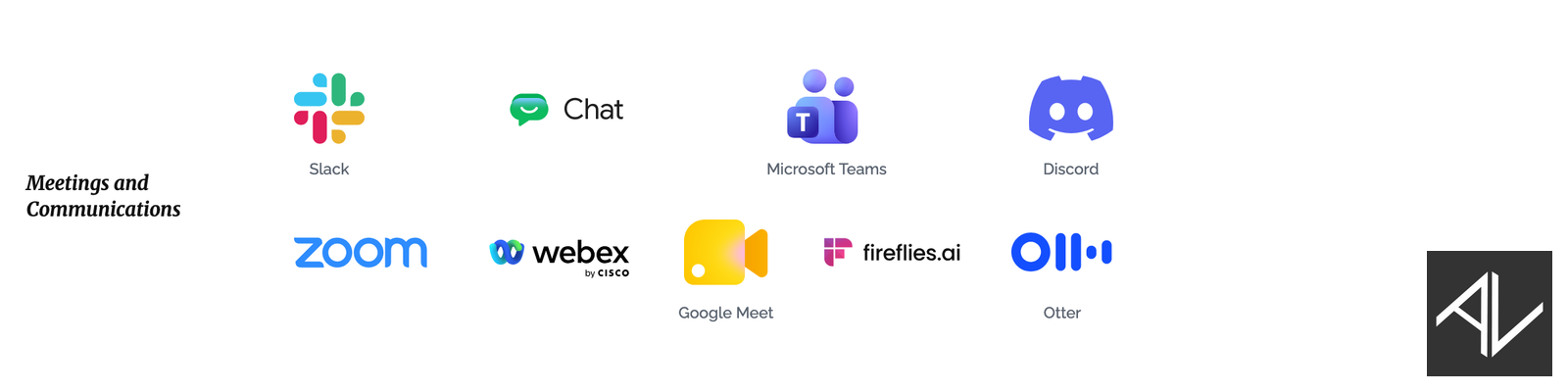
Meeting and communication tools are especially important for remote teams.
These used to be separated into internal and external tools. Nowadays most of them do both, for communicating inside and outside the business.
For team messaging:
Slack is the industry standard for team communication. It focuses on team messaging and does it very well. With Slack Connect, you can also share channels and message people at other companies, like clients and suppliers, from inside your own workspace.
Google Chat is the Google version of team messaging. Its main advantage is being bundled with your Google Workspace subscription at no extra cost.
Microsoft Teams is the Microsoft version and best for companies already on Microsoft 365. It also does external communications with guests and other companies.
Discord is a free alternative that requires a bit more setup.
For video conferencing:
Zoom is the global standard in video conferencing, especially with external parties. It offers call recording, generated meeting links, great audio/video quality and integrates with almost everything.3
Webex is the enterprise-level alternative to Zoom.
Google Meet is the video conferencing part of Google Workspace, and can be used both inside and outside the business.
The important thing is to not use a consumer-grade messaging application like WhatsApp, Facebook Messenger, WeChat or LINE for your team communications. And not to use FaceTime, WhatsApp, Facebook Messenger, WeChat and so on for internal calls.
Using these tools makes it hard to track threads, to set up dedicated groups/rooms/channels for specific business topics and to back up chat data for any legal requirements.
They are however, great for external client communication.
Also, don’t use email for internal communications.
Emails and subsequent replies are just confusing and arduous for no good reason at all, especially when better tools like Slack and Microsoft Teams exist.
Here’s how you run effective internal business meetings.
AI Notetakers
AI notetakers sit in on your calls, record and transcribe them, and send out a summary with action items afterwards.
Zoom, Google Meet and Microsoft Teams all have AI notetaking built in now, depending on which plan you are on.
The catch is that each one only works inside its own platform. If your calls are spread across platforms, there are dedicated options. These join your call as an extra participant, called a bot.
Fireflies works with almost any meeting platform and integrates with most CRMs and project management tools.
Otter is the longest-standing name in the space and is good for searching back through old meetings.
Three things to remember when using AI notetakers:
All of them usually have a “recording in progress” warning when the call starts.
Summaries are usually sent out automatically by the AI notetaker.
Notes are not tasks. Action items still go into your task management app, and anything worth keeping goes into your knowledge management tool.
6. Cloud Storage

All businesses should have their files stored in the cloud. Businesses setting up for remote need all their files stored in the cloud.
Unless there is some legislative need to have a file server in a local office or at a data centre somewhere, cloud storage is the default right now.
Cloud storage is virtually unlimited and very inexpensive.4
It comes with advantages like automated backups and the ability to easily share files and folders both within the company and with clients and customers.
The main services in the space are:
Google Drive is my first choice. It comes with Google Workspace, which makes it cost-effective for businesses already on Workspace. There are some limitations on folder depth and file quantities if you have a lot of files and folders.
Dropbox is synonymous with cloud storage. They have the best sync client of all the services, and it is the one to pick if you are not on Google Workspace.
Microsoft OneDrive would not be my first option for cloud storage but it gets the job done.
7. Knowledge Management

Knowledge management is something most companies will not have set up.
It is the sharing of standard operating procedures and other collaborative knowledge across the company.
It is especially important for remote teams because you will no longer be able to just walk down the hall to John’s desk to ask him how to complete a certain work process. There will also be times when someone needs to know something and the right person isn’t available on Slack to ask.
There are two main tools in this category:
Notion is what I recommend for most teams. It is a wiki, document and database tool in one, and its built-in AI can answer questions using what is in your workspace. Here is my guide to systems and SOP management in Notion.
Confluence has been the standard enterprise wiki for many years. It is the natural choice if your team already runs on Jira.
Both are solid applications and choosing one really comes down to personal preference.
For smaller teams, these applications are pretty much free, so there is no reason not to use them.
8. Integration Apps

We’ve covered seven different categories of applications so far.
You may be asking - do these apps integrate and work together in any way?
Why yes, they do.
Simple examples would include being direct messaged on Slack ten minutes before a meeting starts, or having your video conferencing software automatically generate join links when a meeting is scheduled.5
Most applications will integrate “natively”, meaning you can just click “enable integration” in one service and it works with another right away.
For applications that don’t have native integrations, you can use a service like Zapier or n8n to connect them together.
For example, you can use Zapier to pipe data from emails to a CRM, to notify you in real-time about a social media mention, and to connect almost anything to Slack.
9. AI Agents

This category did not exist when I first wrote this guide.
Now it belongs in the stack alongside email and team chat.
You should already be familiar with AI tools like Claude and ChatGPT. The AI Agent version of those extends the knowledge-based capabilities by creating execution-based capabilities using plugins.
As an example, the AI agent can connect to your Google Workspace apps, CRM, email and calendar, recorded meeting notes and more and help you easily create presentations, proposals, summary notes and more.
You can also run several agents at once while you get on with your other work. I call this hypertasking.
The main options are:
Claude and Claude Code is what I use day to day. It is strong at writing, analysis and working through long documents.
ChatGPT and Codex is the most widely used, and the one your team has most likely tried already.
Gemini lags behind Claude and ChatGPT a bit, but is strongly integrated across Google Workspace making it easily accessible and very useful.
Which one you pick matters less than how well your team learns to use it.
What I recommend is setting up an AI harness that is compatible across all the AI models. The harness is everything that sits around the model: your instructions, your skills and the connections to your apps.
Models change quickly. A harness that works with all of them means you can switch without starting again.
Getting your harness, tooling and workflow set up is exactly what I cover in my Complete Claude, Claude Code and AI for Work Productivity course.
All of them have team plans with central billing and admin controls. They connect to apps like Google Drive, Slack and Notion, so the agent can work with your company information.
Once connected, it becomes the first place to ask a question before pinging a colleague in another time zone.
The important thing with AI agents is to put your team on a business plan, not personal accounts.
It is the same logic as not running your team communications on WhatsApp. Company data ends up scattered across personal accounts that you can’t see, control or switch off when someone leaves.
You likely also have AI built into the apps you already pay for:
Google Workspace has Gemini.
Microsoft 365 has Copilot.
Slack, Zoom, Notion and Asana all have their own AI features.
These are worth turning on. If your team lives entirely in Google Workspace or Microsoft 365, the built-in one may be enough to start.
AI agents are only as good as the information you give them. This is one more reason to get your knowledge management (#7) in order.
10. All-in-One Suites
I have mentioned Google Workspace and Microsoft 365 a couple of times.
These applications are “all-in-one” application suites that can be cost-effective for remote teams, even if some of the applications lack in features, or just don’t work as smoothly as their standalone competitors. For example, Google Chat is not as polished or user-friendly as Slack.
Others include:
My personal preference is to cherry-pick applications in each category based on what each business needs, or to only enable services within an all-in-one suite that the business needs. There is nothing worse than turning on some thirty-plus applications and overwhelming users.
11. Speciality Apps
It is likely that your business already has some speciality applications related to your industry.
These are not remote working-specific but most of them are already set up for cloud access in some form or another, and are thus suitable for remote teams.
They could include:
CRMs like Zoho CRM or Salesforce.
ERPs like SAP.
Marketing automation suites like Kit (formerly ConvertKit), HighLevel, Keap (formerly Infusionsoft) or ActiveCampaign.
Helpdesks like Freshdesk, Zendesk or Help Scout.
Schedulers like Calendly or Acuity Scheduling.
An Example Remote App Workflow
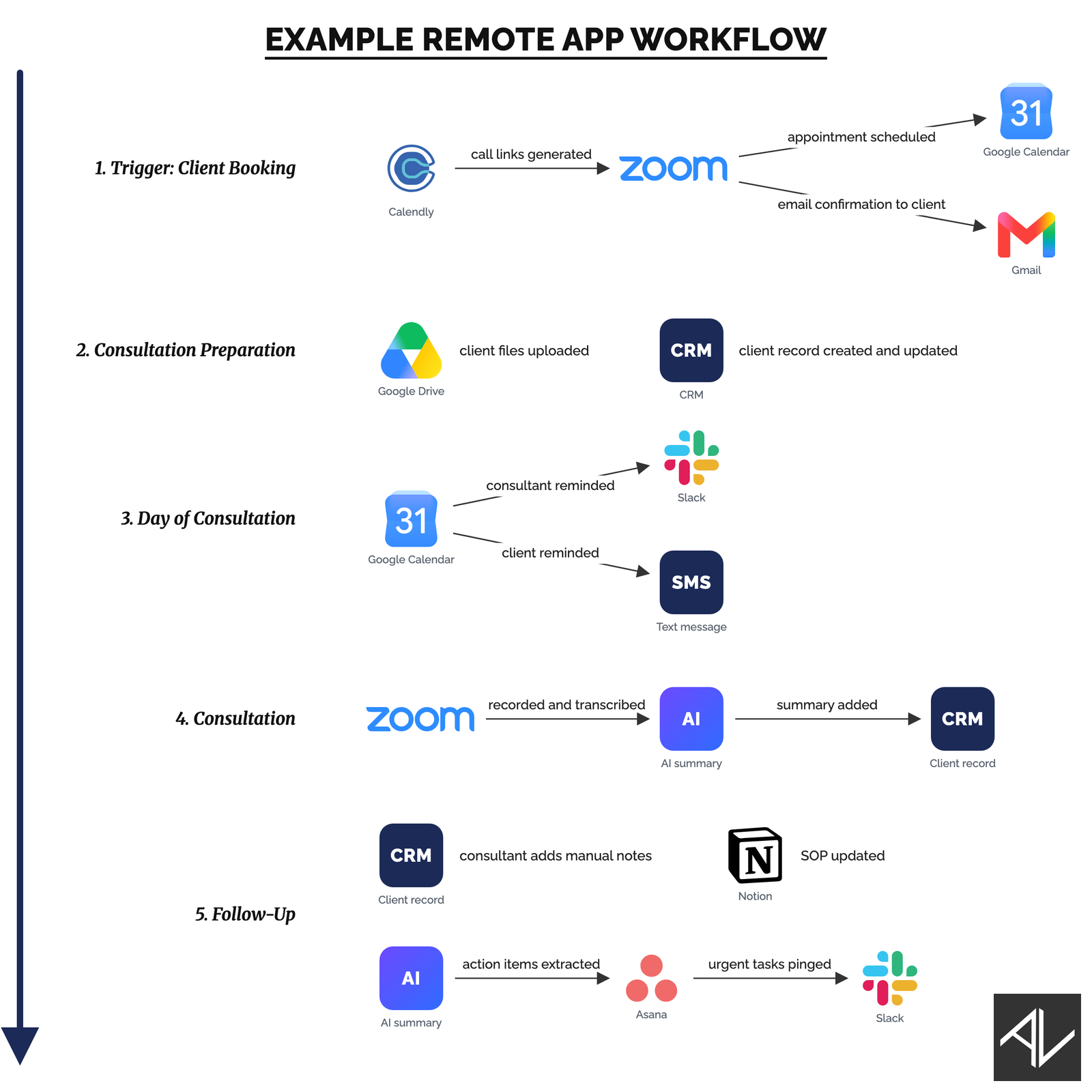
Let’s have a quick look at how these applications could all work together for a traditional professional services firm that meets with external clients.
The trigger action in this workflow is a client booking a meeting via the company’s website. This is done through Calendly, which checks the consultant’s schedule and makes sure that the client appointment does not clash with anything else they have on.
The appointment is made and paid for online. An event is created and synced to the consultant’s calendar, and the client receives an email confirmation with Zoom join links.
The client is given a place to upload their files before the consultation. These files are automatically saved into Google Drive, and a note is made in the client’s CRM record, covering both the appointment and the uploaded files.
On the day of the call, the consultant receives a ping on Slack reminding them of all the calls they have on that day.
The client receives a text message an hour before the scheduled call-in time.
The consultation is conducted on Zoom. The call is automatically recorded, transcribed and summarised by AI.
After the call, the summary goes into the client’s CRM record automatically. The consultant can add their own manual notes on top.
The action items are also extracted automatically and go into Asana, where they are allocated out to the back office to process. Any urgent or important tasks are pinged out by the consultant to the relevant people via Slack.
As a result of the meeting, the consultant decides that the company’s consultation procedure needs to change a bit and they update this in Notion.
What To Do Next
This guide was written for businesses going remote but can be used by any business looking to modernise their business systems.
First, select your applications.
Then read my guide on how business owners can set up their companies to go remote.
For a more principle-based approach, see how remote working differs from running a traditional office.
And last, deploy your apps, one at a time.
Footnotes
Actually, these apps can be used by all teams whether they are remote or not. ↩︎
i.e., you can log into most of your apps by clicking “log in with Google”. For everything that doesn’t support that, use a password manager like 1Password. ↩︎
Zoom went through a spate of privacy-related issues back in 2020 and has tightened things up since. I am not a security expert - I use what is easiest and what works. All tools have their issues, so please check your legal requirements around privacy and security first. ↩︎
In my experience you will pay more to set up, maintain and upgrade local file servers. ↩︎
You could do most of this manually, but five minutes here and there for many people adds up to quite a lot over a year. ↩︎